Windows 10 / 11

The Perfect Webcam
for Your Streams
& Screencasts

A compact always-on-top camera window with AI effects that works everywhere — even in fullscreen games.

Download Free v2.4 — Free, no installation
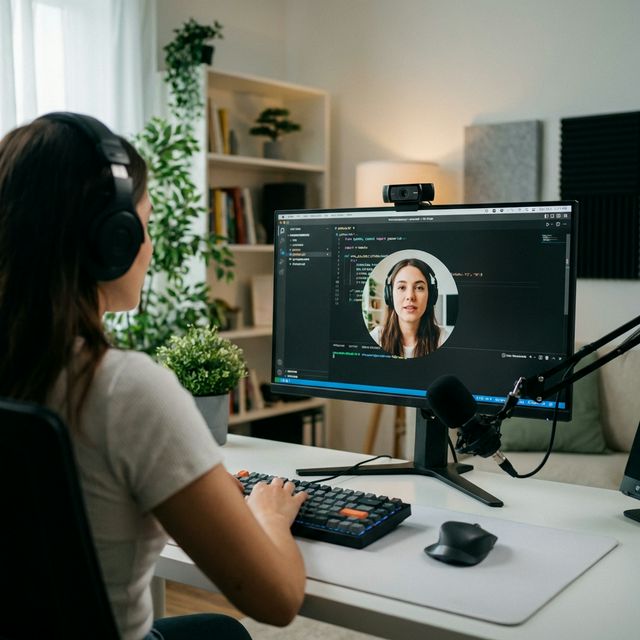
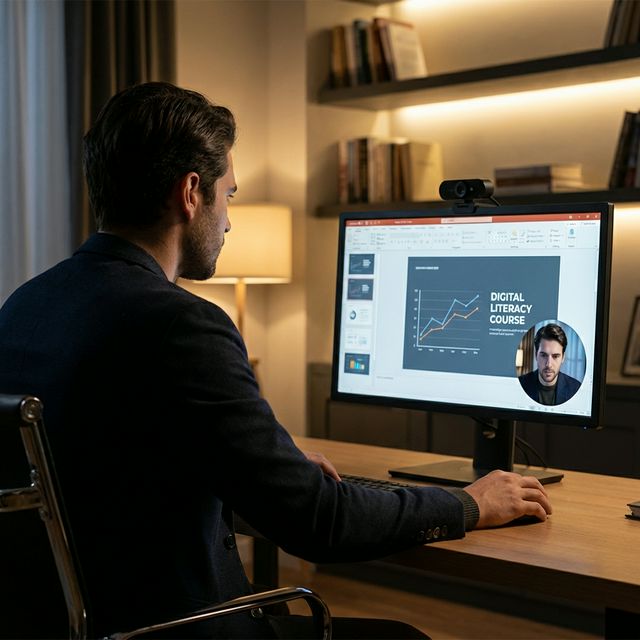
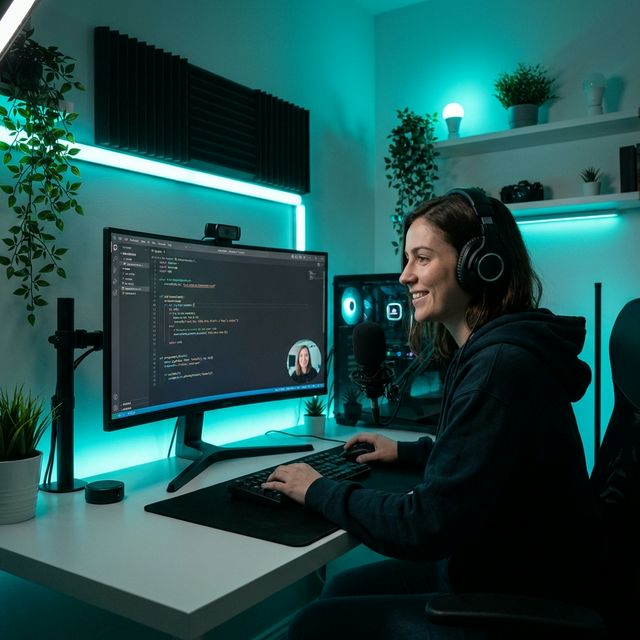
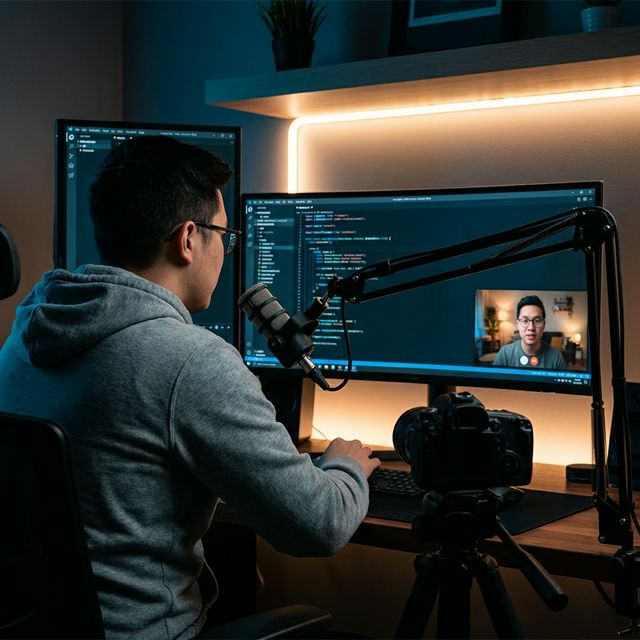
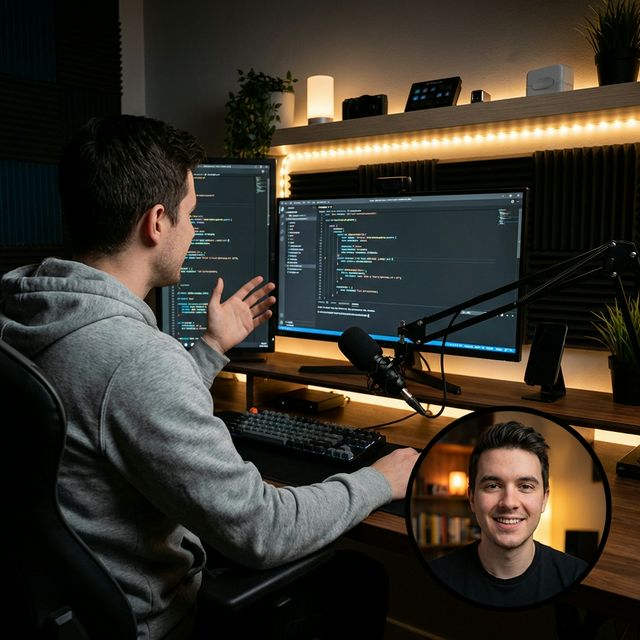
Content creator recording tutorial Educator presenting course Developer streaming code Creator with dual monitors Programmer explaining code
Scroll to explore

Solve Real Problems

No matter what you create — MiniCamApp makes your camera invisible until you need it.

STREAMERS

Streaming & Gaming

Your face cam hovers over any fullscreen game without alt-tabbing. OBS picks it up automatically.

EDUCATORS

Online Teaching

Show your face next to slides or a whiteboard app. Students stay engaged when they see you.

CREATORS

Screen Recording

Record tutorials with a personal touch. The webcam window is always in frame — no post-editing.

PROFESSIONALS

Remote Meetings

Keep your camera visible while navigating documents or code during calls. Works with Zoom, Teams, Meet.

PAIN POINT

Messy Background?

AI blur hides your room in one click. No green screen, no studio setup needed.

PAIN POINT

Too Many Windows?

MiniCamApp stays on top of everything. Show / hide with a single hotkey. Never lose your camera.

Your Camera, Your Rules

Stop wrestling with clunky capture software. MiniCamApp adapts to you — not the other way around.

Place It Anywhere

Drag the camera wherever you want. In the corner, over the code, beside the chat — it never blocks your content.

Show & Hide Instantly

One hotkey to vanish, one to return. Stay focused on your game or presentation — bring the camera back when ready.

Change Everything on the Fly

Shape, size, blur, zoom — tweak anything with a single click. No settings menus, no restarts.

Zero Config, Just Works

Forget complex OBS setups. Run the app, see your camera. Works with any capture software — Streamlabs, Zoom, Discord.

Everything You Need

Powerful features packed into a lightweight, portable app.

01

Always on Top

Your camera window stays above every application — IDE, browser, games. Never lose sight of yourself.

02

3 Window Shapes

Rectangle, rounded corners, or a perfect circle. Choose the shape that fits your style.

03

AI Face Tracking

Automatic framing keeps you centered. Five zoom levels from full frame to face-only close-up.

04

AI Background Blur

Hide your background without a green screen. Four intensity levels from subtle to maximum.

05

Opacity & Hotkeys

Adjust window transparency (100%–25%). Ctrl+Alt+C to instantly show/hide the camera globally.

06

Portable & Lightweight

No installation needed. All settings saved to config.json. Copy the folder and go.

Up and Running in Seconds

Three steps. No setup wizards, no accounts, no internet required.

1

Download

Grab the ZIP archive from GitHub Releases.

2

Extract

Unpack anywhere on your PC. That's it.

3

Launch

Run MiniCamApp.exe — AI models load automatically (~4 MB).

Support the Project

MiniCam is completely free. If you find it useful, you can support its development with a voluntary donation.

Frequently Asked Questions

Make sure the _internal\ folder is next to the .exe file. If that doesn't help, install Visual C++ Redistributable.
Windows 10 and Windows 11. Any webcam is supported.
Try reducing background blur intensity or disabling AI face tracking. Close other resource-heavy apps.
Yes, completely free with all features included. Donations are entirely voluntary.
About 350 MB when unpacked. No additional installation required.
Both apps need exclusive camera access. To use MiniCam, please disable the camera in Nvidia Broadcast first.
Exclusive fullscreen mode hides all overlays. Switch your game to "Borderless Window" or "Windowed Fullscreen" mode.

Bitcoin

QR Code

Address...

Address Copied!